
How to reduce motion effects in macOS Ventura
Spaces was introduced into macOS way back in 2007, I make use of it everyday. However, I find the sliding animation is too distracting. This guide shows you how to make a change to the accessibility settings to turn it off.
I wrote about this same topic back in 2017, back then I was trying to Disable the Spaces Animation in macOS Sierra. The setting panel has changed quite a bit since then, so I thought I'd update that post here.
Video guide
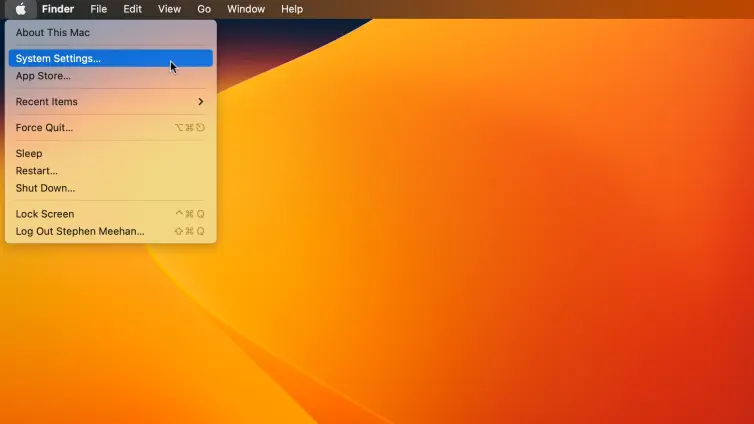
Click on the Apple icon at the top left corner and click System Settings
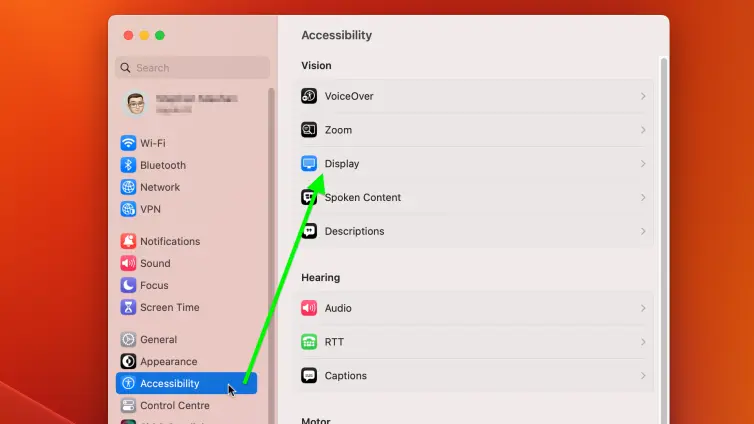
Choose Accessibility, then click Display
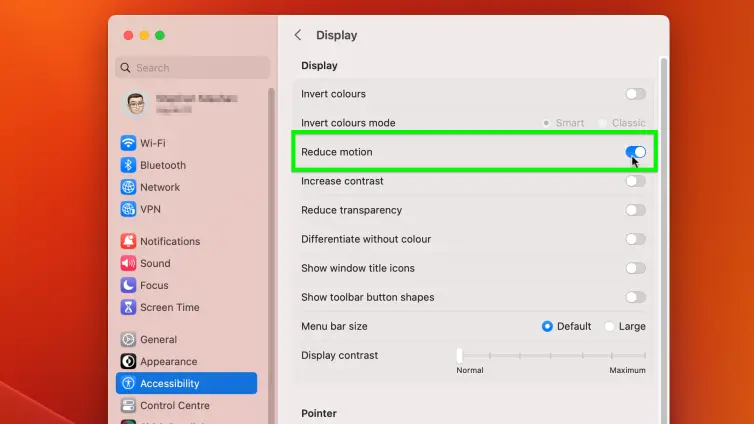
Turn on the Reduce Motion Toggle
Now close the settings window, either press the red circle in the top-left of the window, or use the CTRL + W keyboard shortcut. Now hold the CTRL key and a left or right arrow key to easily navigate between the spaces without the annoying sliding animation.

Updated: 16th March, 2026
by Stephen Meehan in macOS